
JOINING & DOWNLOAD GUIDE
How to get your project files
A step-by-step guide to joining on YouTube and finding your Project Vault downloads.
Already a Vault member? Go straight to the download instructions →.
1. Visit the channel and click Join
Open YouTube’s membership page. This should take you directly to the membership purchase page. If it opens, continue to step 2.
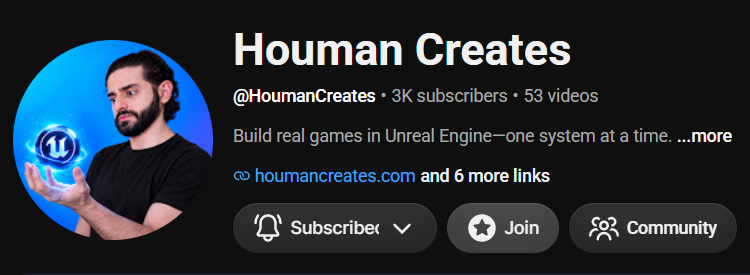
If you don’t see the membership options, visit the Houman Creates YouTube channel and click Join below the channel name. The button is highlighted in the screenshot.
2. Choose your Vault membership
Choose the level you want on YouTube:
- Project Vault: All project files, including files from Plus videos.
- Project Vault Plus: The same project files, plus exclusive advanced video tutorials.
Review the price and benefits shown on YouTube, then click Join and complete your membership purchase there.
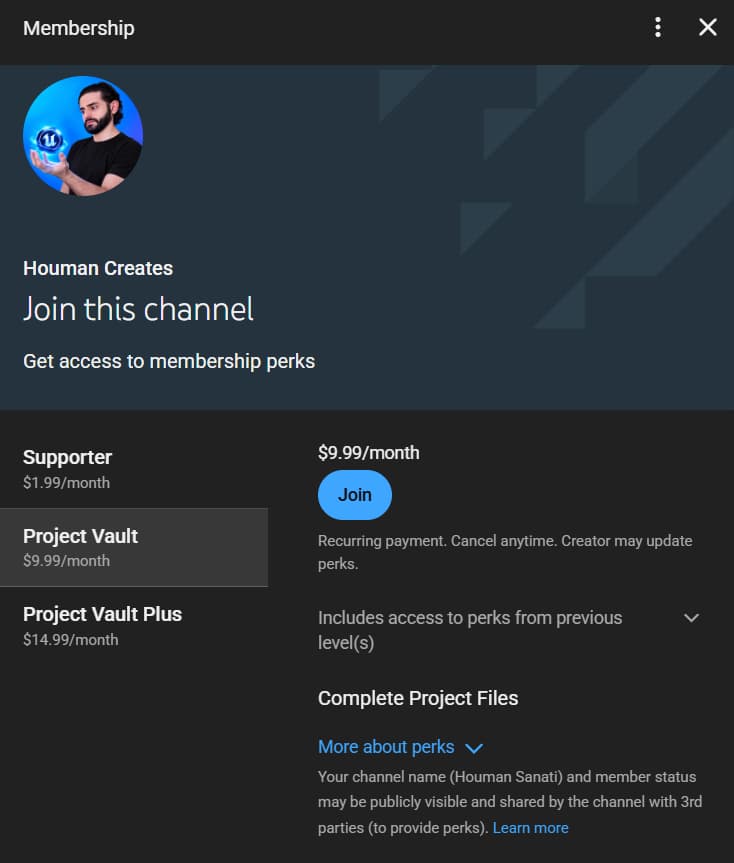
Example: Project Vault is selected in this screenshot. Choose Plus if you also want the exclusive videos.
3. Open the project directory
After joining either Vault level, sign in with the YouTube account you used for the membership.
- Open the Posts tab on the Houman Creates YouTube channel.
- Scroll down to the members-only post titled 🔒 PROJECT VAULT — PROJECT DIRECTORY.
That post contains the download links for every available project. It is updated whenever a new project or version is released, so you can return to the same post.
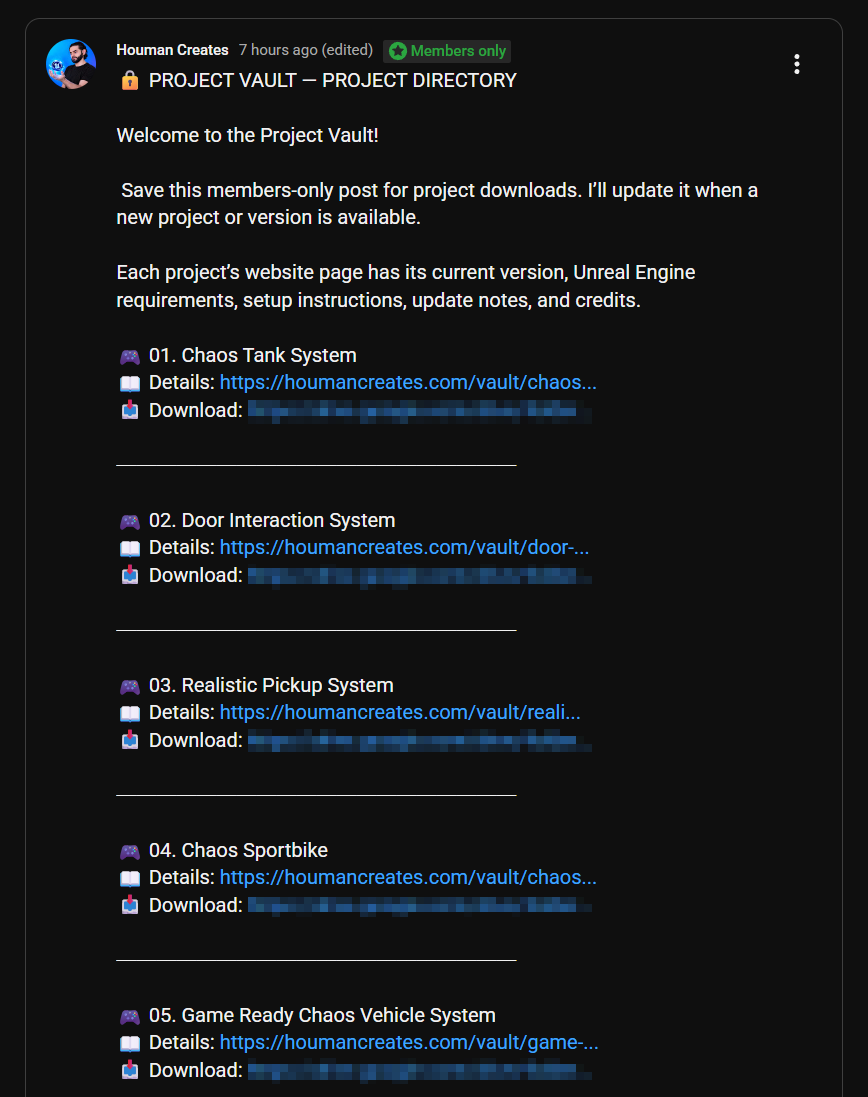
This is what the directory post looks like. Download links are hidden in this public example.
Watching Plus tutorials
If you have Project Vault Plus, open the Houman Creates YouTube channel while signed in with your membership account to watch the exclusive advanced videos. All project files from those videos are also available to Project Vault members.